

What are DXF Files? (Uses, Types, Format)
DXF files were designed for one purpose. To make computer-aided design easier, and that’s exactly what they do. They’ve helped streamline multiple industries by universalizing data. It’s a fairly simple concept, but that doesn’t mean DXF filing doesn’t have a learning curve. To help smooth out your introduction to DXF, we’ve composed this intuitive guide. This is an essential first step into the world of DAX-assisted CAD.
What Is A DXF File?
Autodesk, DXF (Drawing Exchange Format or Drawing Interchange Format) is a file format with a democratized data encoding that facilitates interoperability between a variety of CAD software. DXF files allow users to open data files in any CAD system.
Confused? That is understandable, so let’s distill this into more accessible terms.
We’ll begin by briefly discussing what DXF files actually contain. DXF files carry design templates sometimes referred to as drawings, patterns, objects, or models depending on the industry. For example, a DXF file used in fashion or textile industries might contain a sewing pattern for a garment of clothing. In the automobile industry, it may be the model blueprints of a car or engine.
DESIGN NEW DXF FILES ONLINE IN MINUTES
OUR NEW FAST ONLINE GIZMO-DESIGN DXF PLATFORM COMING SOON
- Customize Artwork & Other DXF FILES Online Fast
- Personalize Them
- Download Your Files & Cut
Take A 30 Second Survey – Receive Free Fire Pit Files and Get On The VIP Waiting List To Try For Free!

FIRE PIT FILES!
Of course, the fact that they contain templates isn’t what makes DXF files special, so what does? Well, an easy way to understand it is to think about normal written documents on a computer. Have you ever tried to open a Word document as a PDF, or a Pages document in Word?
It doesn’t work because the files are incompatible. The data is native to a single program. This is the problem DXF files solved in a CAD context. Their data can be read by any CAD program. Which allows businesses to use their established software to work on all 2D or 3D templates.
Types of DXF File
There are two types of DXF files, ASCII-based DXF, and Binary-based DXF.
ASCII DXF Files
The ASCII format of DXF files uses American Standard Code for Information Exchange to represent an entire AutoCAD drawing. For the uninitiated, the American Standard Code for Information Exchange (ASCII) is the English language subset of Unicode.
The basic concept of Unicode is to represent language using numbers. Imagine a block of text. Unicode assigns each letter and punctuation mark within it a corresponding number. Capital A, for example, is represented in ASCII as 065, while an exclamation mark is represented by 033.
Since these numerical assignments are fixed, all texts can be expressed in digits alone. These transposed numeric texts are known as bit patterns and can easily be understood by and stored on a computer.
Bit patterns have a number of computational uses including encoding our emails, computer programming, and in the case of DXF files, representing complex images in a simple manner.
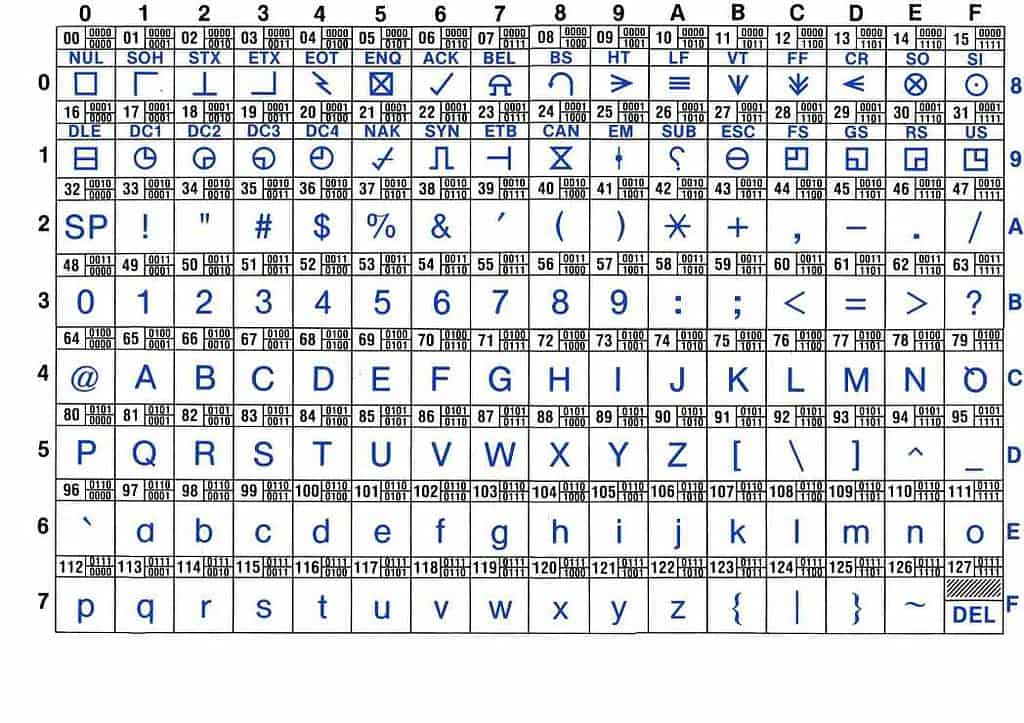
But it’s not just letters and punctuation marks that can be translated into ASCII. It also includes numbers and a collection of symbols. In total, ASCII contains numerical codes for 128 characters.
As ASCII is a subset of the universal Unicode language that all computer programs can process, it was the perfect way to widen the compatibility of AutoCAD files.
Binary DXF Files
The binary format of DXF files was created much later on. Using binary code in place of ASCII for transposing complex digital images, files can be reduced in size by 25%. What’s more, AutoCAD and other CAD programs are able to read and write binary DXF files almost five times as fast as ASCII files.
As you’re probably aware, binary code uses combinations of ones and zeros to represent almost any form of data. It’s utilized by computers as an efficient and reliable way to process and store that data.
The reason CAD programs can interact with binary DXF files so efficiently is that, as AutoDesk states on their website, “Unlike ASCII DXF files, which entail a trade-off between size and floating-point accuracy, binary DXF files preserve the accuracy in the drawing database”.
Being that the binary format of DXF files offers a more streamlined experience for computers and designers alike, they’ve become the industry standard.
DXF – The Basics
Properties of the DXF Format
As we’ve already touched upon, DXF files are cross-platform vector files that can be read by any computer-aided design software. Which streamlines their dissemination.
No longer do companies have to worry about what software different departments are using. Now designers are free to collaborate no matter which CAD programs they use.
However, DXF files aren’t only compatible with typical CAD programs, they’re also understood by GIS and CNC software. Just in case you’re unsure what they are, GIS stands for Geographic Information System.
GIS software has the ability to analyze spatial and geographic data to help with decision-making. For instance, a retailer may use GIS to help pick out locations for a new store, or a utility company might use it to pinpoint a faulty pylon.
A section of the Earth’s surface could be drawn out as a DXF file, then opened in GIS software for in-depth spatial analysis.
CNC stands for Computer Numerical Control Program. Simply put, CNC software allows you to control a machine – usually an engraving or cutting router – using only a computer or control module.
This kind of program is used to increase productivity in workshops and the manufacturing industry. You could upload a DXF file of an ornate shelf for example, and the CNC software would tell a machine how to carve it out of a piece of timber.
DXF files can contain either 2D or 3D images; however, DXF files cannot produce solid 3-Dimensional images. Instead, they’ll produce a hollow outline of a 3D image with no volume whatsoever.
A 3D DXF file is created by exporting an STL file (Standard Tessellation Language) as a DXF fil. A 2D image is created when a DWG file is exported as a DXF file, but more on those later.
DXF File Accuracy
Another thing that makes DXF files so special is their accuracy. This is because the data they store corresponds to mathematically correct representations of the image.
As such, when printing or using a CNC machine to bring the design to life, they can produce highly accurate renditions of the design.
The reason DXF files are so accurate is that they’re a vector-based format as opposed to raster-based. Raster-based files utilize colored pixels to display images, which is fine, but the image quality diminishes when scaled.
Conversely, made up of mathematically defined entities, vector files retain fidelity as they’re scaled.
DXF Files and 3D Printing
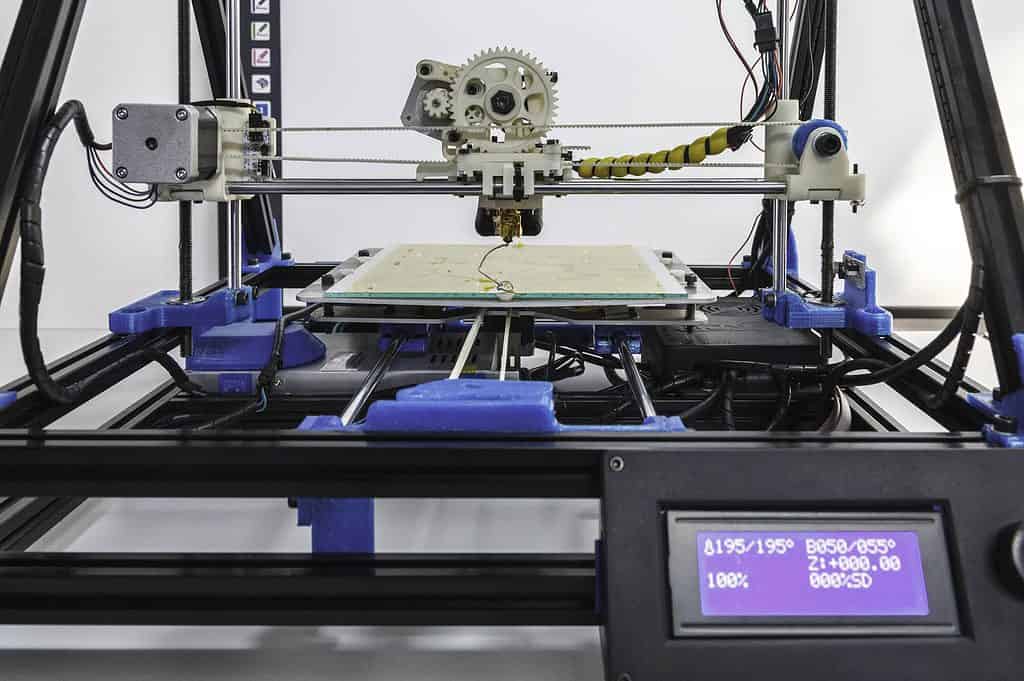
Unfortunately, you cannot 3D print a DXF file. However, the design can be 3D printed if you first convert the DXF file to an STL file for slicing (a process that transfers a 3D image into printing instructions).
Do bear in mind, though, that once converted, it’s possible that the DXF units will be lost. Meaning you’ll have to re-scale the STL model.
Storing and Transferring DXF Files
You wouldn’t be the first to despair at your computer’s storage space maxing out after shouldering only a few DXF files, but they’re big for a reason. DXF files have the capacity to store incredibly complex image data, so it’s only natural that they eat up a large chunk of your storage space.
The sizing of a DXF file is also affected by a few other factors. For example, earlier versions of the DXF format didn’t support advanced CAD drawing tools such as splines.
As such, when you export the file using said tools and load it into another CAD program, the software won’t understand that a line is supposed to be curved, and will only be capable of displaying its closest approximation of what the image is supposed to be.
So, rather than nice curvatures, the originally smooth edge might be made up of hundreds, sometimes thousands, of little connected straight lines. Each of these extra points expands the file size. Which amounts to a storage crisis the likes of which you’ve never seen before.
This can also happen when using a tracing tool to turn a raster image into a DXF file. On both occasions, it can be remedied by adding arcs on top of the design as a fresh layer. This can reduce the file size by as much as 50%.
As DXF files will often exceed the file-sending capacity of transport mechanisms such as email and DropBox, they can be incredibly difficult to move from A to B without using a physical hard drive.
There are; however, some tricks you can use as a workaround. For example, you can export them as PDF files, which makes them easier to send, but you do risk losing some CAD-specific features in the process.

How to Open a DXF File? (3 Examples)
Opening DXF Files in AutoCAD
As AutoCAD is the native software for DXF files, opening them up couldn’t be easier. All you need to do is…
- Fire up AutoCAD.
- Click ‘File’ in the toolbar.
- Select ‘Open’ in the dropdown menu.
- A dialogue box will then open allowing you to select the file type.
- Choose DXF, or *.dfx as it appears in the AutoCAD menu.
- Find the DXF file you wish to open in the list that appears or type the file name into the search bar.
- Click the file, and select ‘Open’.
That’s really all there is to it, and now you can get to work on your design.
Opening DXF Files in Alternative CAD Programs
It doesn’t really matter which CAD software you prefer as DXF files are designed to translate their data into the native format of your software.
The opening sequence for DXF files may vary from program to program, but more often than not you can locate your file by clicking the ‘File’ option in the program’s toolbar, then ‘Import’. You should then be able to pick out your DXF file from its location in your computer’s storage.
Once you’ve selected your DXF file, a menu box should appear in your CAD allowing you to refine the scale of the image before opening it. Here you can set the units you wish to work with – mm, cm, or inches. Once you’ve confirmed your chosen units, the image should be loaded onto the CAD program and ready for action.
Opening as a View-Only Image
If you don’t have a dedicated CAD program on your computer, but you need to view the contents of a DXF file to give feedback, you can do so using one of the numerous free online DXF file viewing programs.
You’ll be given full visuals of the template and all the essential data, but you won’t be able to interact with it like you would in a CAD program. The best of these sorts of programs is called AutoDesk Viewer, which can be downloaded for free here: https://viewer.autodesk.com/.
Once you’ve got Viewer locked and loaded on your computer, simply press Ctrl – O to locate and open the DXF file you wish to view, and voilà, there it will be. You can even use the eDrawings app on Macs to access the view-only DXF image.

How To Convert DXF Files
You may have to convert your DXF file to either an STL, DWG, or PDF file before opening it. Unfortunately, most computers don’t have the built-in ability to convert DXF files into other formats. Don’t fret, we’re happy to report that it’s an easy fix.
There is currently a myriad of free online file converters available such as this one that specializes in turning your DXF files into STL files https://anyconv.com/dxf-to-stl-converter/. They’re easy enough to use, and they’re only a search away – perfect!
Alternatively, you can open your DXF file in AutoCAD as normal, and when you go to save the image, you’ll be given the option to choose what sort of file it should be saved as. You can export the converted image, or even just part of the image, back into the DXF format as and when it’s necessary.
How to Make DXF Files?
Let’s think about typed documents again and continue our analogy from earlier. If you have a Word document, but you need to save it as a PDF, you can do so via a very simple chain of commands. You’ll click ‘File’, ‘Export’, choose PDF from the menu, choose a location, and that’s that.
It’s essentially the same simple process when you want to export a drawing as a DXF file. Although the terminology and command chain is a little different. Start by…
- Clicking ‘File Menu’ then ‘Save As.
- In the dialogue box, click ‘Tools’ then ‘Options’.
- In this dialogue box, select ‘DFX Options’.
- Choose ‘Select Objects’ then click ‘OK’.
- Now you can select DXF as the file type in the first ‘Save As’ dialogue box.
- Select a location or make a new folder and click ‘Save’.
- Select the objects you wish to export as a DXF file and press ‘Enter’.
That’s it. Once you’ve done this a couple of times, you won’t even need to think about it.
How to Print DXF Files?
DXF files can also be printed so they can be spread physically, saving people involved with the project from ever needing to use viewing software. Some also like to print them out to use the templates as a guide for crafting the project.
We’ll use AutoCAD itself for the printing tutorial, so bear in mind that the process may differ ever so slightly in other CAD programs.
To print a 2D DXF file, it’s as simple as opening it in AutoCAD and hitting print. Printing out 2D DXF file models to scale so you can use them as physical templates is not so easy.
The reason is, you’ll need to sync your printer’s output up with the scale output of AutoCAD. if it’s even big enough to print it in the first place.
If your printer is too small, a good workaround is to download some software that enables you to isolate full-scale PDF files of individual regions of the drawing that you can then print separately.
As we mentioned earlier in the guide, you cannot print a 3D model directly from a DXF file. First, you have to convert it into an STL file, but AutoCAD makes this conversion automatically at the end of this print command chain.
- Open your DXF file in AutoCAD.
- Select ‘Output’ in the toolbar.
- Click ‘Send to 3D Print Service’.
- A dialogue box will appear with options to learn about how to properly prepare a 3D model for printing or to just continue.
- Click ‘Continue’.
- Now you can select the solids you wish to print.
- A dialogue box will appear with a preview image and the output dimensions.
- Change the output dimensions if necessary.
- Click ‘OK’.
- Your file will then save in an STL format, and the printing will commence.

DXF File Vs DWG, What’s the Difference?
DXF and DWG formats were created simultaneously by Autodesk. The difference is that DWG files can be opened in AutoCAD exclusively. As collaboration steadily became a larger aspect of CAD, the data exchangeability of DXF files helped them to become the standard format.
However, as the native file type of AutoCAD, there are a few things you can do with a DWG (drawing) file that can’t be done with a DXF file…
- Color – DWG files can contain color data. So, if you’re working on a 2 or 3D image of a tree, you can color the leaves green and the bark brown, and once the DWG file has been saved, the colors are too. Opening that file back up again will always show a colored tree. DXF files, on the other hand, can only contain data that corresponds to line work, text, and dimensions.
- Line weight – Another advanced feature of the DWG format is that you can store data that translates into line weights of a design. Line weight refers to how thick and dark the lines of a design are. It’s like the pressure you put on the pencil as you draw on a piece of paper. DXF files simply aren’t designed to harbor this sort of data. This means there will always be uniformity between the lines of the design in a DXF file.
- File Size – Despite binary encoding reducing DXF files by 25%, they will always be larger than the original DWG file they’re exported from. This is because DWG is a compressed format, while DXF is a full-fat file, so to speak.
Right now you’re probably wondering why you should use the DXF format if you can do more with a DWG file. The truth is, if you’re working in AutoCAD exclusively and only sharing files with others that use AutoCAD, you’re better off using DWG files. If, on the other hand, you wish to share your work with users of non-AutoDesk CAD software, you’ll need to stick with DXF, otherwise, they won’t be able to interact with or even load your designs.
What’s the Difference Between DXF and STL Files?
Unlike the DXF and DWG file formats, STL files were not created by AutoDesk; however, STL files are compatible with AutoCAD software as well as many other CAD programs.
When you’re first getting started with CAD or 3D printing, it’s easy to confuse DXF and STL files as they can both contain 3D images, but there is a subtle yet important distinction to make.
DXF files can only contain the drawing of a 3D image, i.e. the outlines. An STL file will contain an image of an actual 3D model. This is largely why you can’t print a DXF file, but you can print an STL file.
Final Thoughts
DXF files aren’t quite as ubiquitous as they were a few years ago. Nowadays, there’s really no way to avoid them if you’re a designer that uses CAD software. Now you’re armed with all this DXF knowledge, you should be able to put your doubts behind you and focus on what really matters: exquisite computer-aided design.
Amazon Affiliates Disclaimer.
This site is a participant in the Amazon Services LLC Associates Program, an affiliate advertising program designed to provide a means for sites to earn advertising fees by advertising and linking to Amazon.com. We are compensated for referring traffic and business to Amazon and other companies linked to on this site. Some of our links are affiliate links. We make a small commission if you use these links. As an Amazon Associate, I earn from qualifying purchases. It is important to do your own research to find what works best for you.